
Local Conversion Optimization – For local businesses today, being online is no longer optional. Most people look up a business online before they ever visit a store or make a call. This means your website is just as important as your physical location.
As more businesses compete online, it’s important to understand how visitors actually use your website. Are they clicking the right buttons? Are they scrolling or leaving too quickly? These actions can show what’s working and what needs improvement.
This is where landing page behavior matters. Things like clicks, scrolling, and where visitors stop paying attention help explain why some pages convert and others don’t. To see this clearly, many businesses use heatmaps and call tracking tools. Heatmaps show where people click and scroll, while call tracking shows which pages lead to phone calls.
In this blog, we’ll explain what heatmaps and call tracking are, how to set them up, and how to use the data to improve your local landing pages and get more leads.
We’ll cover:
• What Are Heatmaps?
• What Is Call Tracking?
• Setting Up Heatmaps and Call Tracking
• Understanding Heatmap and Call Tracking Data
Heatmaps?
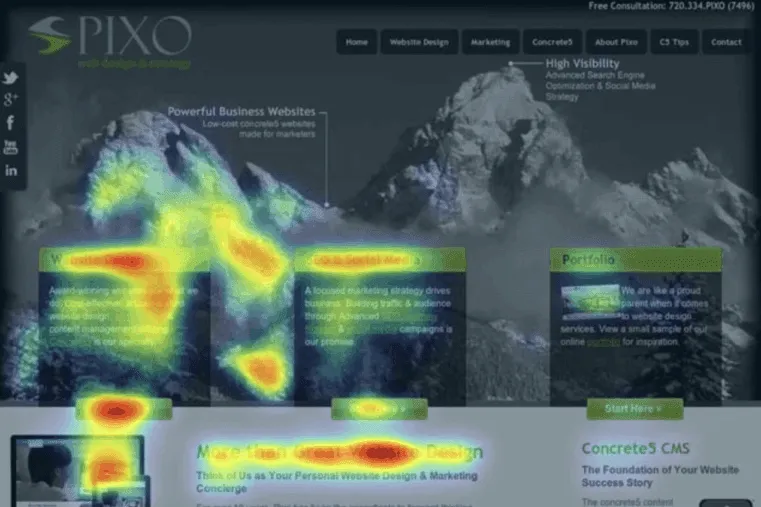
Website heatmaps are visual tools that display user interaction data on a landing page using color gradients. Typically, warmer colors indicate areas of high engagement, while cooler colors highlight areas of lower activity. This visualization helps businesses understand how users navigate their websites, and reveals which elements attract attention and which are overlooked.
Call Tracking?
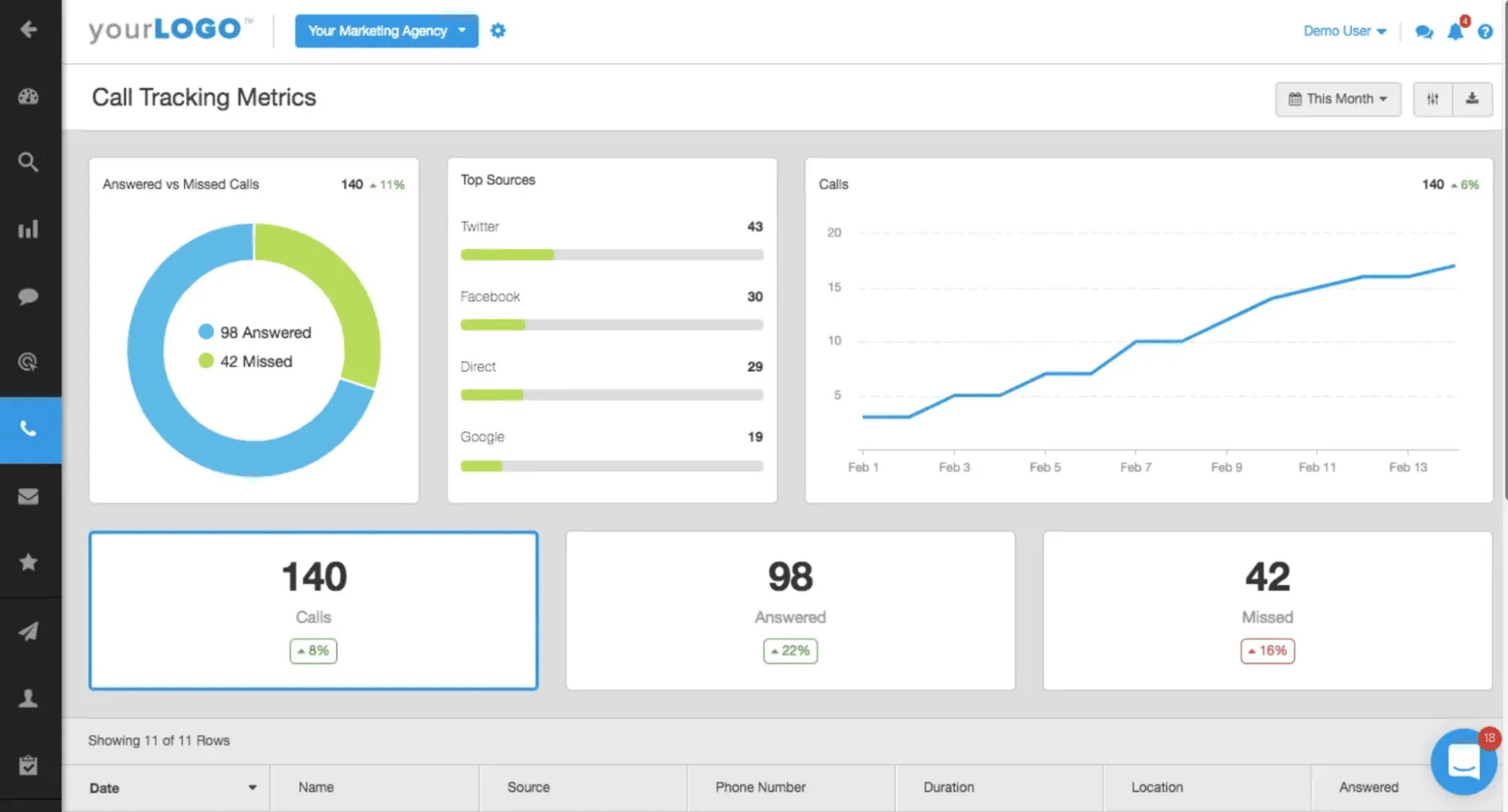
Call tracking helps businesses identify the source of their phone calls. Different phone numbers are used for various ads, pages, or marketing channels, allowing each call to be traced back to its source.
This is especially helpful for local businesses, where many customers prefer to call instead of filling out a form. For example, someone might search for a dentist, click an ad, and call right away. Without call tracking, that call would be hard to connect to the marketing that brought it in, making results unclear.
How to Set Up Heatmaps and Call Tracking
Setting up heatmaps and call tracking helps local businesses understand what visitors are doing on their websites and what leads to real conversions. These tools show how people interact with each page, making it easier to improve results.
The good news is that they’re easy to set up, don’t require technical skills, and work with most modern websites and marketing tools.
How to Set Up Heatmaps
Step 1: Pick a Heatmap Tool
Choose a tool like Hotjar, Crazy Egg, or Microsoft Clarity. Many offer free plans or trials, which are great for small businesses.
Step 2: Add the Tracking Code
After signing up, the tool will give you a small piece of code. Add it to your website or install it using Google Tag Manager.
Step 3: Choose Pages to Track
Decide which pages you want to watch. Start with pages that get the most visitors or are tied to local ads or campaigns.
Step 4: Check Device Views
Make sure the tool tracks visitors on desktop, tablet, and mobile so you can see how behavior changes across devices.
Step 5: Let the Data Collect
Once everything is set up, the tool will start recording visitor actions. You’ll usually see results within one or two days.
How to Set Up Call Tracking
Call tracking helps you see which pages, ads, or marketing efforts bring in phone calls. Setting it up is straightforward and doesn’t require technical expertise.
Step 1: Choose a Call Tracking Tool
Pick a tool like CallRail, Invoca, or Twilio. Make sure it works well with your analytics or CRM system.
Step 2: Create Tracking Phone Numbers
Set up different phone numbers for each ad, campaign, or landing page. These numbers send calls to your main business phone while quietly tracking where each call came from.
Step 3: Add Numbers to Your Site and Ads
Place the tracking numbers on your website pages or use automatic number swapping. This changes the phone number based on how someone found you, like through Google search, ads, or social media.
Step 4: Label and Track Calls
Name each number in your dashboard so you know what it’s for. Many tools also let you record calls or mark them as good leads.
Step 5: Connect to Analytics
Link your call tracking tool to your analytics or local SEO tools so you can see phone calls alongside website data.
Understanding Heatmap and Call Tracking Data
Once your heatmaps and call tracking are set up, the next step is looking at the data they provide.
This data helps you see how visitors use your website and which marketing efforts bring in calls and leads. Understanding it well can show what’s working, highlight missed opportunities, and guide changes that improve results.
What to Look for in Heatmaps
Clicks
See where people are clicking — and where they’re not. Are buttons and calls-to-action getting attention? If visitors are clicking on things that aren’t clickable, it might mean your page layout or messaging is confusing.
Scrolling
Scroll maps show how far down people go. If key info or your main call-to-action is too far down, many users may miss it. Consider moving important content higher or simplifying the page.
Mouse Movement
Tracking where the cursor lingers shows what visitors are reading or paying attention to. If users spend time on testimonials or guarantees, those sections may deserve more focus.
Ignored Areas
Look for parts of the page people skip entirely. Sections that get little attention may need a rewrite, redesign, or removal. Every part of your page should serve a clear purpose.
What to Look for in Call Tracking
Call Volume by Source
Check which campaigns, ads, or pages bring in the most calls. If a source is consistently generating good leads, consider investing more there.
Call Timing and Length
Look at when people are calling and how long calls last. Longer calls often show higher interest or better-quality leads. Timing trends can also help schedule staff or ads more effectively.
Page-Level Conversions
See which specific pages turn visitors into callers. If some pages perform better, figure out why and use those lessons on other pages.
Call Quality
Many tools let you rate or tag calls. High numbers of calls are good, but quality matters too. Pay attention to the type of questions, lead potential, and conversion results to understand which calls are most valuable.
Conclusion:
Using heatmaps and call tracking gives local businesses a clear view of what works on their website and what drives calls and conversions. By understanding visitor behavior, you can make smarter changes that turn more clicks into customers.
At A99 Solutions, we help local businesses set up and use these tools to boost leads, calls, and sales—turning data into real results.