

If you are new on Google Search Console (GSC) and confused about how to add user to google search console manage it yourself, but want to give you access to other people, this guide is here to help. Let’s guide it in the process in simple steps, with clear instructions and visual aids to facilitate.
This guide will also cover different levels of access, the types of property functions, and how to manage user permissions effectively to keep control over Google’s presence on your site.
Let’s dive!
User access levels on Google Search Console
GSC offers various types of user functions, each with different levels of authority and access:
1. Owner
This role has the highest level of control in the GSC.
- Owners can adjust the settings, manage users, and supervise all data related to the site.
- They have the ability to add or remove users and modify site preferences.
- There are two distinct types of owners: primary owners (verified owners) and secondary owners (delegated owners).
2. Owner Verified
- This user proves that they have the site, checking -using specific methods, such as an HTML tag, a DNS record or loading an exclusive file.
- They have full access to all GSC features and can manage other users, including the appointment of new owners.
- At least one verified owner must exist for a property to be active in the GSC.
3. Delegated Owner
- This user receives ownership permissions from a Verified Owner.
- Unlike a Verified Owner, they do not directly prove ownership of the website.
- They can still add or remove other users and delegated owners.
- If the Verified Owner who granted them access is removed, their status is also revoked.
- In the settings menu, they appear as an “Owner,” but without proof of verification.
- Every GSC property must have at least one Verified Owner, who initially verifies the site. Delegated Owners are listed as “Owners” but do not have independent proof of ownership.
4. Full Access User
- These users can view all data, adjust settings, and make modifications.
- They also have permission to add and remove users.
- While they have extensive control, they cannot assign or change ownership roles.
5. Restricted Access User
- These users have limited access to GSC.
- They can review performance reports and some settings but cannot make changes.
- They do not have the ability to add or remove users.
6. Associate
- This role has highly specific, restricted permissions.
- Associates can complete assigned tasks and access specific data.
- They cannot directly modify anything in GSC or manage user roles.
- Examples include managing integrations with external platforms, such as linking a Chrome Web Store listing.
Adding Users to Google Search Console
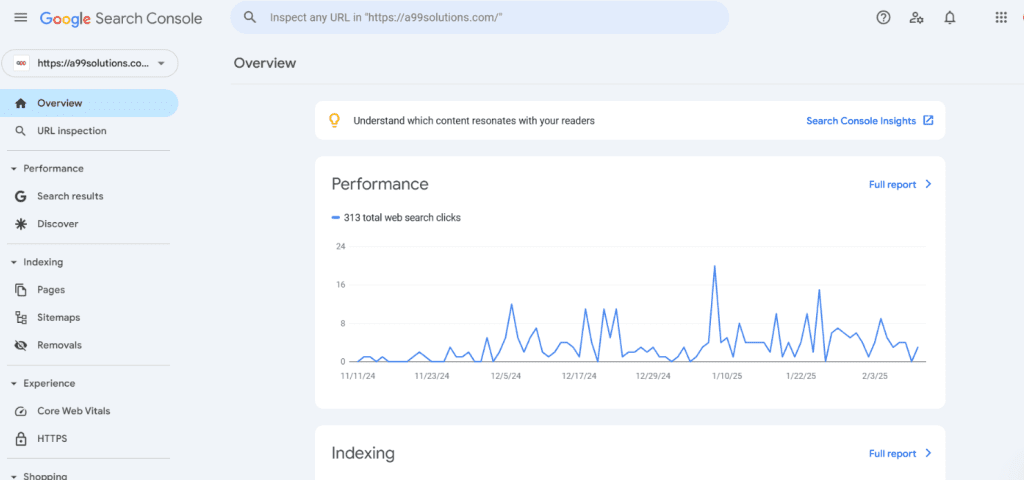
Step 1: Log into Google Search Console
Go to the Google Search Console web page and access your account by signing in with your credentials. if you are still confused on how to add user to google search console then keep scrolling this blog for more information.
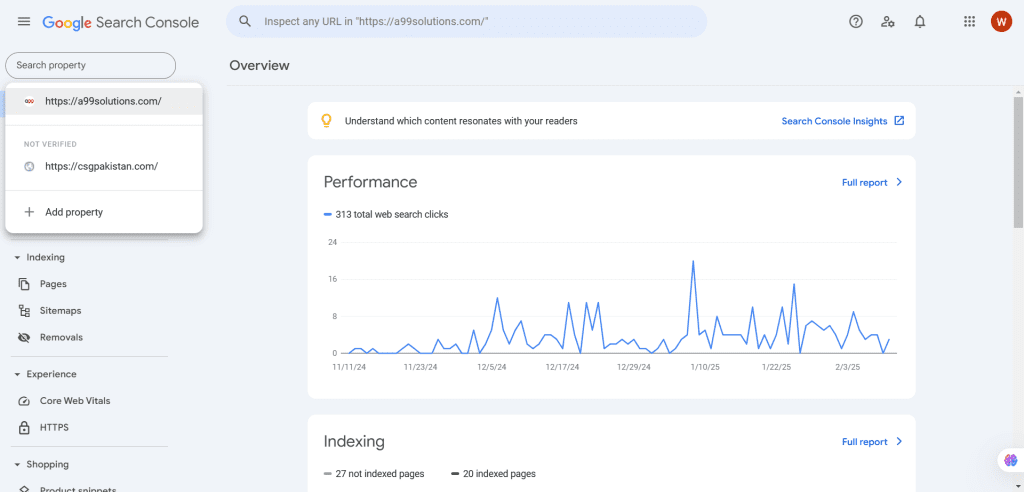
Step 2: Select your website
From the ‘Search property’ dropdown in the top left corner, choose the website you want to manage.
Step 3: Access settings

In the left panel, scroll down and click on ‘Settings’. keep scrolling for getting more information on how to add user on google search console.
Step 4: Go to Users and permissions
In the settings screen, select “Users and permissions”.
Step 5: Add a new user
Click on the ‘ADD USER’ button.
Step 6: Enter the user’s email address and permission level
In the ‘Add user’ window, type in the email address of the user you want to add. Ensure this email is associated with a Google account. Select the desired permission level for the new user. Click on the ‘ADD’ button to finalize adding the new user. keep diving for getting more information on how to add user to google search console.
Common problems when adding users to Google Search Console
When trying to add users to the Google search console, you can have some problems. Below are some common problems and how to correct them. keep scrolling this blog for getting more information on How To Add User To Google Search Console.
1. Email not found
If the email inserted is not recognized, it means it is not linked to a Google account. Check the spelling twice to ensure that there are no typing errors. If the problem continues, confirm that the person has a valid Google account or try to use another email address.
2. Denied error of access
This can happen if the person already reaches the limit to the number of websites that can access or if the permission level does not allow them to perform certain actions. Review your access settings and adjust them accordingly.
3. Waiting for verification
If a user is listed as “pending verification”, it has not yet accepted the invitation. PIECE -LES TO CHECK THE IMPORT INPUT BOX (INCLUDING SPAM OR DIRECTIONS) AND COMPLETE THE VERIFICATION PROCESS.
4. Permission limitations
Only owners and complete users can add new users to Google search console. If you cannot add someone, check your own permission level. Restricted users do not have the ability to give access to others.
5. Invitation email not received
If the person you invited has not received email, ask them to look for your spam or trash folder. Also, confirm that the email address was inserted correctly and that they did not block Google messages.
6. It is not possible to access the Google Search Console
If a user cannot yet enter the account after accepting the invitation, he must ensure that they are connected to Google’s correct account. If necessary, they can try to switch accounts or clean the browser cache and cookies before trying again.
Conclusion
Google Search Console is a powerful tool that helps you monitor, optimize, and improve your website’s search performance. Whether you’re adding new users, managing permissions, or troubleshooting common issues, understanding GSC ensures your website remains visible and performs well on Google.
If you want expert guidance on Google Search Console and SEO, A99 Solutions is here to help! As the best digital marketing agency in Texas, we provide expert SEO strategies, website optimization, and hands-on support to grow your online presence.
🚀 Learn Google Search Console With A99 Solutions!
📅 Schedule a Meeting Today and let our experts take your website to the next level!